

In this guide, you’ll learn how to quickly check if your website is SEO optimized—even if you’re just getting started. I’ll walk you through simple, practical checks you can do yourself using free tools and a beginner-friendly approach. By the end, you’ll be able to audit your own website with confidence.
If you’re wondering whether your website is SEO-optimized or how to check if it’s truly SEO-friendly, you’re not alone. SEO can sound complicated at first, but in reality, it’s not rocket science.
Whether you’re a business owner, marketer, or someone just starting to learn SEO, this guide will walk you through simple, practical steps to audit your website’s SEO performance. You don’t need to be a technical expert to understand if your SEO is working. Best of all, many of these checks can be done for free.
Let’s dive into how you can check whether your website is SEO-optimized and where you can improve.
- How to Check if a Page Is SEO Optimized
- How to Check if a Website Is Crawlable
- How to Check if a Website Is Indexed by Google
- How to Check an SEO-Friendly URL
- How to Check the Meta Title of a Page
- How to Check the Meta Description of a Page
- How to Check H1–H6 Heading Tags
- How to Check Canonical Tags
- How to Check Robots Meta Tags
- How to Check Image Alt Text
- How to Check Schema Markup
- How to Check Domain Authority
- How to Check Internal Links on Your Website
- How to Check Backlinks to Your Site
- Conclusion: You’ve Completed a Basic SEO Audit!
How to Check if a Page Is SEO Optimized
To know whether your website is SEO-optimized or if SEO has been implemented correctly, start by auditing your most important pages—especially those where you’ve already done some SEO work.
If you’ve followed SEO suggestions for certain pages (like adding keywords, titles, and descriptions), your next step is to verify whether everything is implemented properly.
Here’s a quick checklist of key elements to review on each page:
- Title Tag
- Meta Description
- Heading Tags (H1, H2, H3…)
- Schema Markup
- Content
- URL Structure
- Canonical URL
- Robots Meta Tags
- Internal Links
- Image Alt Text
In the sections below, I’ll show you how to check each of these elements using easy and free tools perfect for beginners.
Recommended Tool: SEO META in 1 CLICK (Chrome Extension)
One of the easiest ways to audit many SEO elements on a page is by using the SEO META in 1 CLICK Chrome extension.
I use this extension most of the time to quickly check if a website is seo friendly or not
Add the SEO META in 1 CLICK extension to your Chrome browser.
Once it’s installed, you can open any page of your website and instantly see its key SEO elements in one place.
I’ll also mention alternative tools or manual methods wherever needed.
How to Check if a Website Is Crawlable
One of the first steps in making sure your website is SEO-optimized is confirming that search engines can crawl your site. If search engines can’t crawl your website, they can’t index it—meaning your pages won’t show up in search results.
Method 1: Check Your robots.txt File
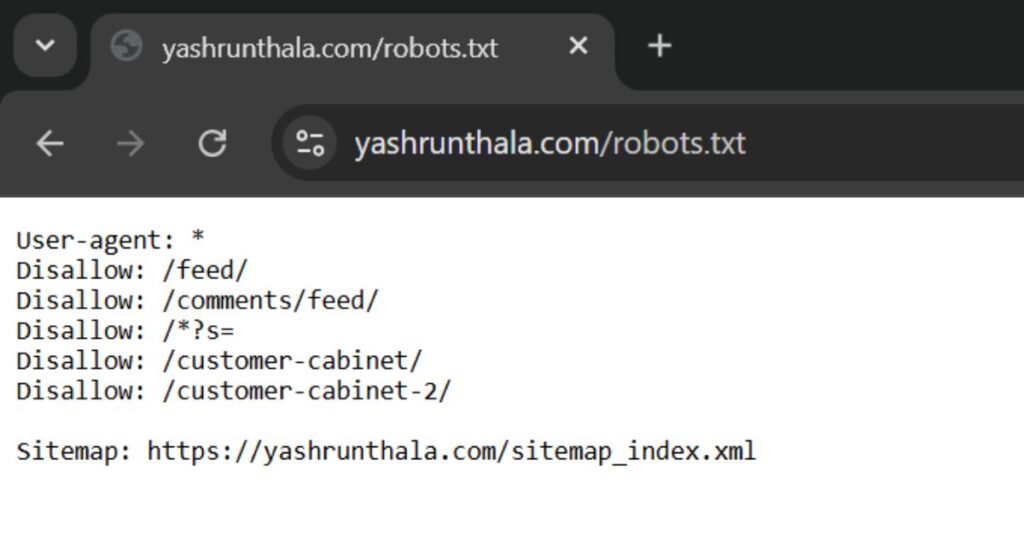
Your robots.txt file tells search engines which pages they are allowed to crawl and which they should avoid.
Go to your browser and type: https://yourdomain.com/robots.txt
Check if any important pages (like your homepage or key landing pages) are being blocked.
In addition, Google Search Console can show crawlability issues. Look under the “Pages” or “Crawl Stats” section (depending on the interface) to see if any pages are blocked from being crawled.
Method 2: Use a Free Crawlability Tool
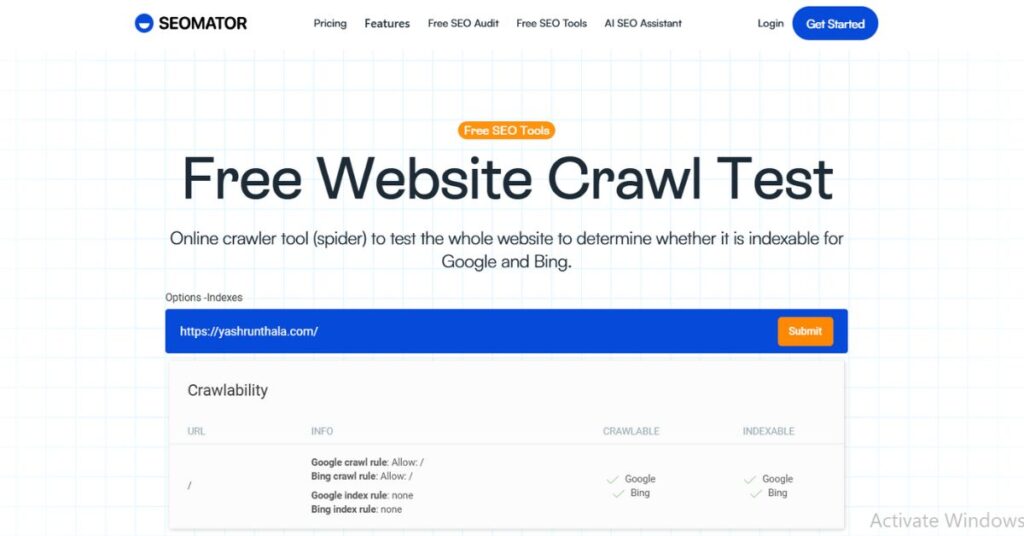
You can also use a free online crawler like SEOMATOR (or similar tools) to scan your website. These tools crawl your website like a search engine and highlight any crawl errors if present. This is especially useful for beginners who don’t want to dig into too much technical detail.
Free Tool to Check Crawlability: SEOMATOR Online Crawler Tool
How to Check if a Website Is Indexed by Google
Once you know that your website is crawlable, the next step is to check whether your pages are actually being indexed by Google.
Method 1: Use the site: Search Operator
- Step 1: Go to Google.
- Step 2: Type: site:yourdomain.com
- Step 3: Press Enter.
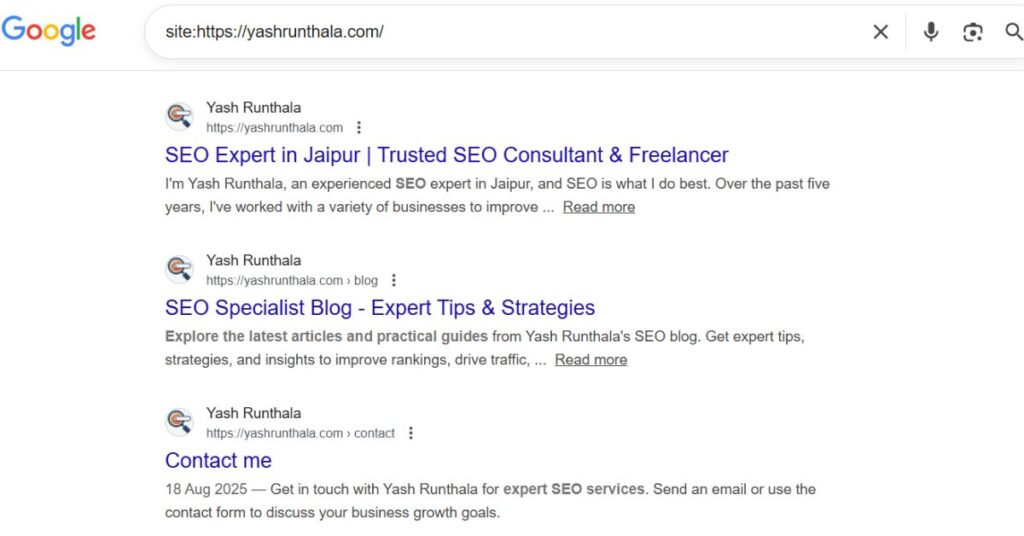
Google will show you a list of indexed pages from your site.
- If you see very few results, it might mean many pages are not indexed.
- If you see nothing, it could mean your website isn’t indexed at all.
Method 2: Use Google Search Console
In Google Search Console:
- Step 1: Go to the “Pages” or “Index Coverage” section.
- Step 2: Check how many pages are indexed.
- Step 3: Review any errors or “Excluded” pages to see why certain URLs aren’t indexed.
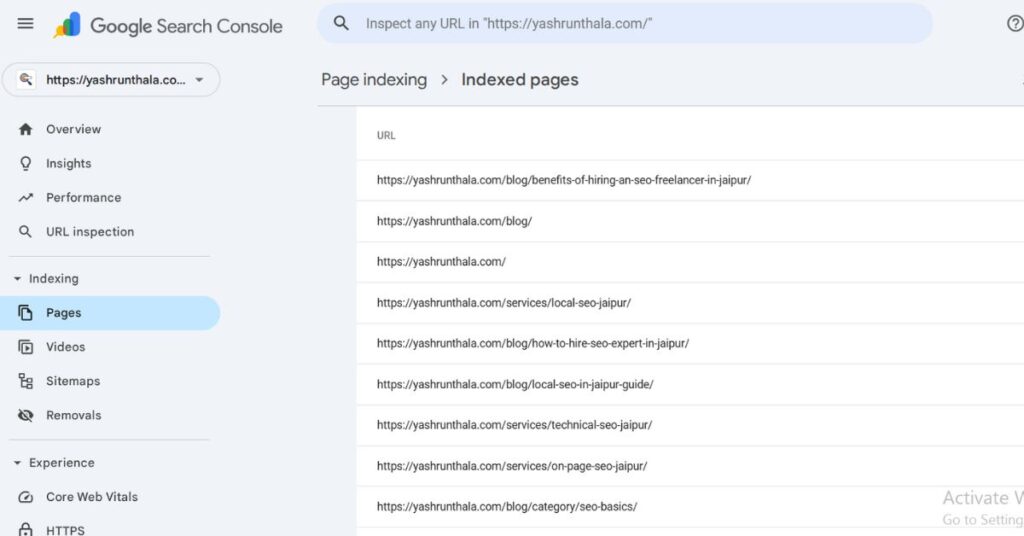
This gives you a much clearer, more detailed view of your website’s index status.
How to Check an SEO-Friendly URL
An SEO-friendly URL is:
- Short
- Descriptive
- Easy to read
- Relevant to the page content
To check if your URL structure is SEO-friendly, make sure:
- It includes your primary keyword (target keyword).
- It is concise and avoids unnecessary numbers or symbols (like 2025, 5, &, ? when not needed).
- It uses hyphens (-) to separate words.
Example: www.example.com/seo-tips instead of www.example.com/seo_tips or www.example.com/seotips123.
If your URLs are long, confusing, or full of random characters, consider simplifying them for better SEO and user experience.
How to Check the Meta Title of a Page
The meta title (or title tag) is one of the most important on-page SEO elements. It tells both search engines and users what your page is about.
Method 1: Check via Page Source
- Step 1: Right-click on the page.
- Step 2: Click on “View Page Source” or “View Source”.
- Step 3: Search (Ctrl + F or Cmd + F) for <title>.
You’ll see something like:
<title>Your Page Title Here</title>
Make sure that your title:
- Clearly describes the page
- Contains your main keyword
- Is not too long or too short (ideally under 55–60 characters)
Method 2: Use SEO META in 1 CLICK
With the SEO META in 1 CLICK extension:
- Step 1: Open the page
- Step 2: Click the extension icon
- Step 3: You’ll see the title tag instantly, along with its length and other details.
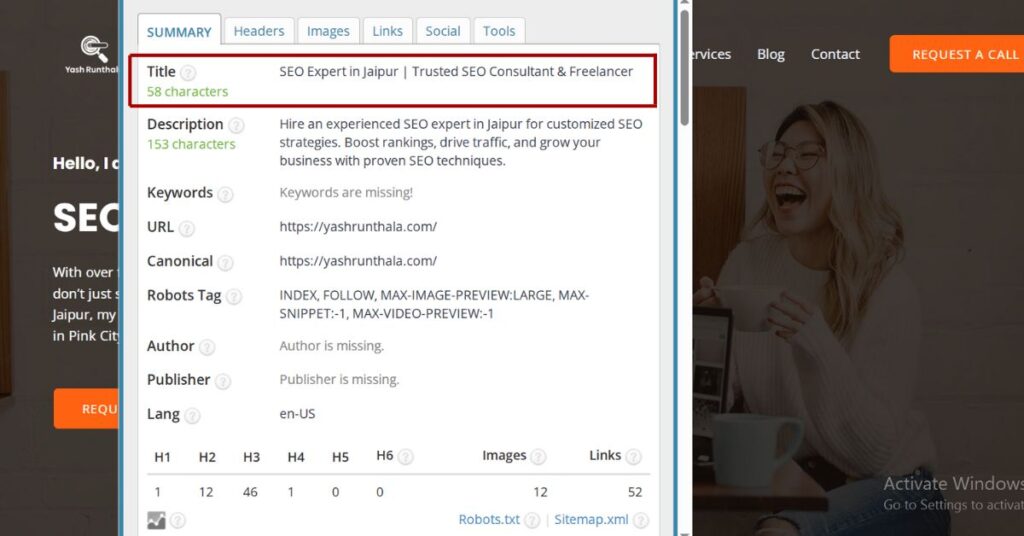
This is much faster than checking the source every time.
How to Check the Meta Description of a Page
The meta description is a short summary of your page that appears under the title in search results. While it doesn’t directly affect rankings, it can strongly influence click-through rates.
Method 1: Check via Page Source
- Step 1: Right-click on the page and select “View Page Source.”
- Step 2: Search for: <meta name=”description” content=”Your description here”>
Check that your meta description:
- Summarizes what the page is about
- Includes your main keyword naturally
- Is compelling and readable for humans
- Stays within 150–160 characters (approximately)
Method 2: Use SEO META in 1 CLICK
The SEO META in 1 CLICK extension gives you a quick view of your meta description and its character length. This makes it easy to review multiple pages without going into the source each time.
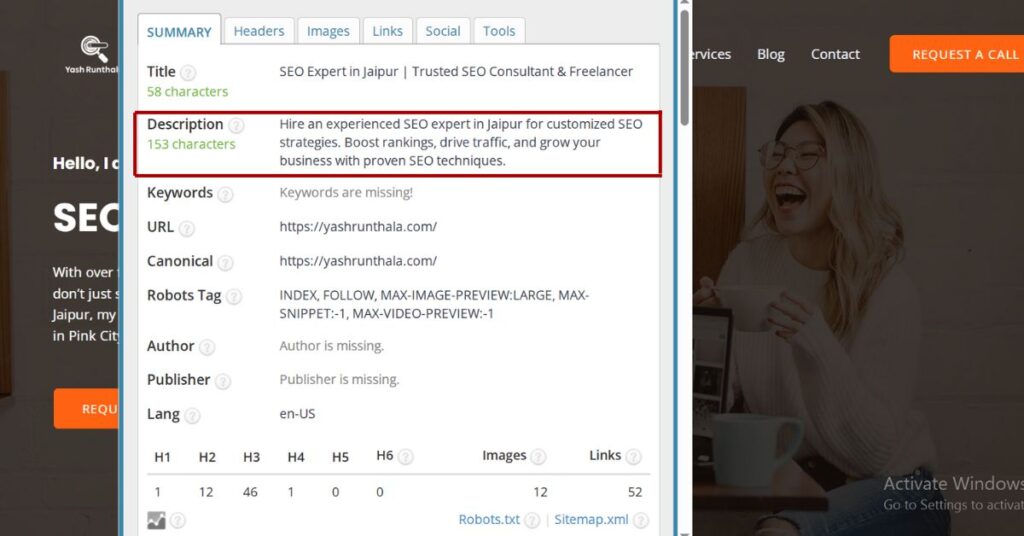
How to Check H1–H6 Heading Tags
Heading tags (H1, H2, H3, etc.) help both users and search engines understand the structure of your content.
- H1 is usually the main title of your page.
- H2–H6 are used for subheadings and sections.
Method 1: Check via Page Source
- Step 1: Right-click on the page and choose “View Page Source.”
- Step 2: Use search (Ctrl + F or Cmd + F) to look for <h1>, <h2>, <h3>, etc.
Things to check:
- There should typically be only one H1 per page.
- H2 and H3 tags should be used logically to structure sections and subsections.
- Headings should include relevant keywords where appropriate, but not be stuffed.
Method 2: Use SEO META in 1 CLICK
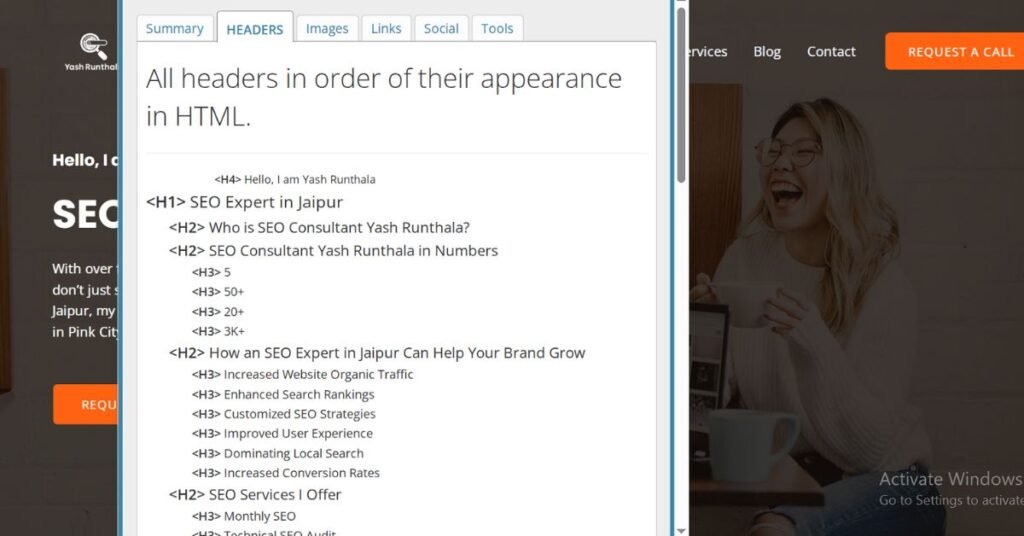
The extension shows all headings (H1–H6) on the page in a clean list. This is perfect for quickly checking:
- Whether your H1 is set correctly
- Whether your headings are descriptive and organized
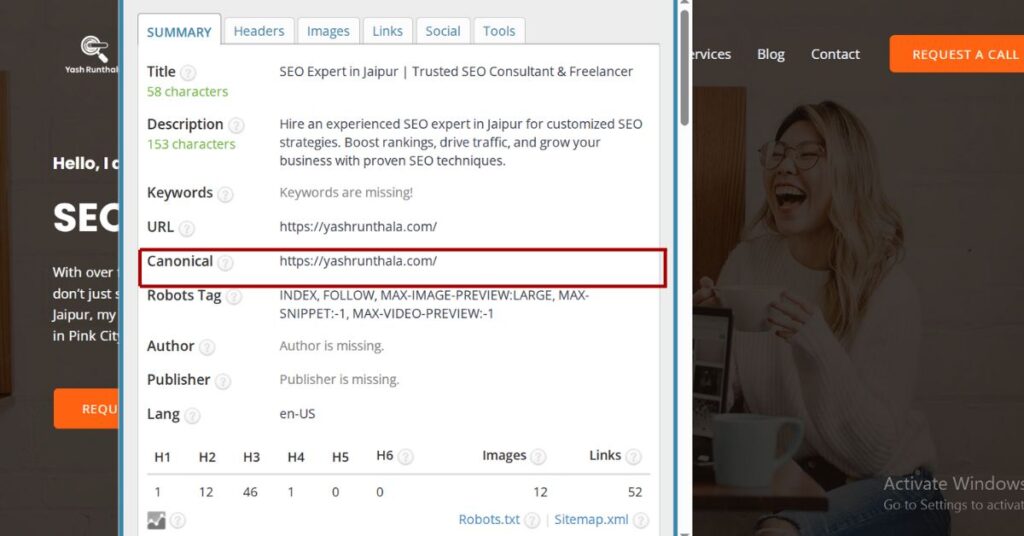
How to Check Canonical Tags
Canonical tags help prevent duplicate content issues by telling search engines which version of a page is the “main” or preferred version.
Method 1: Check via Page Source
Step 1: Right-click on the page and select “View Page Source.”
Step 2: Search for: <link rel=”canonical” href=”https://yourdomain.com/your-main-url”>
Make sure the canonical URL:
- Points to the correct, preferred version of the page
- Isn’t accidentally pointing to another page or the wrong domain
Method 2: Use SEO META in 1 CLICK
The extension also shows the canonical tag clearly, so you can verify it in seconds.
How to Check Robots Meta Tags
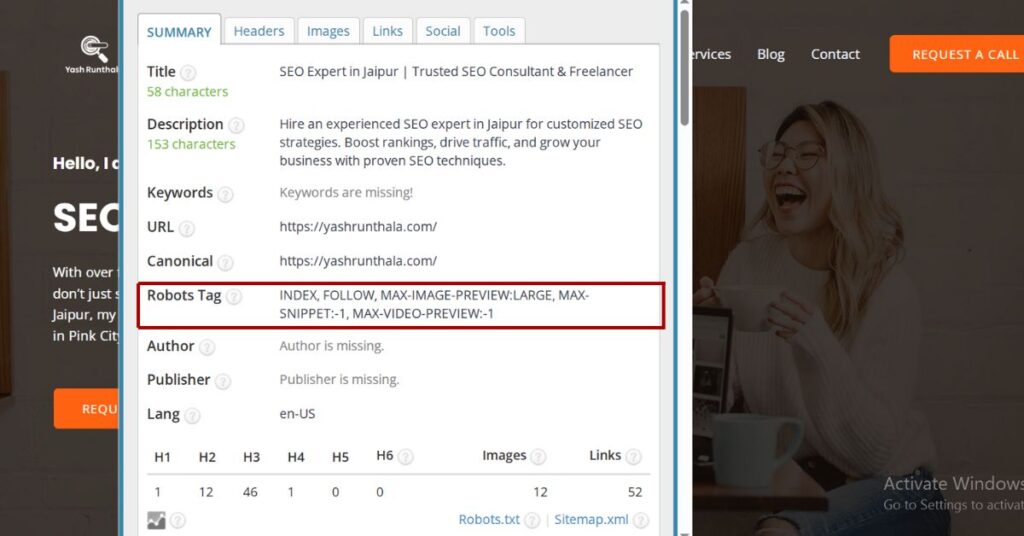
Robots meta tags control how search engines index and follow links on a page.
Common values include:
- index, follow – Allow indexing and following links
- noindex, nofollow – Do not index the page and do not follow links
Method 1: Check via Page Source
- Step 1: Right-click and click “View Page Source.”
- Step 2: Search for: <meta name=”robots” content=”index, follow”>
For important pages that you want to appear in search results, the robots meta tag should usually be set to index, follow or be absent (index, follow is default behavior).
Method 2: Use SEO META in 1 CLICK
The extension will show you the robots meta tag value. This makes it easy to catch cases where a page may have been accidentally set to noindex.
How to Check Image Alt Text
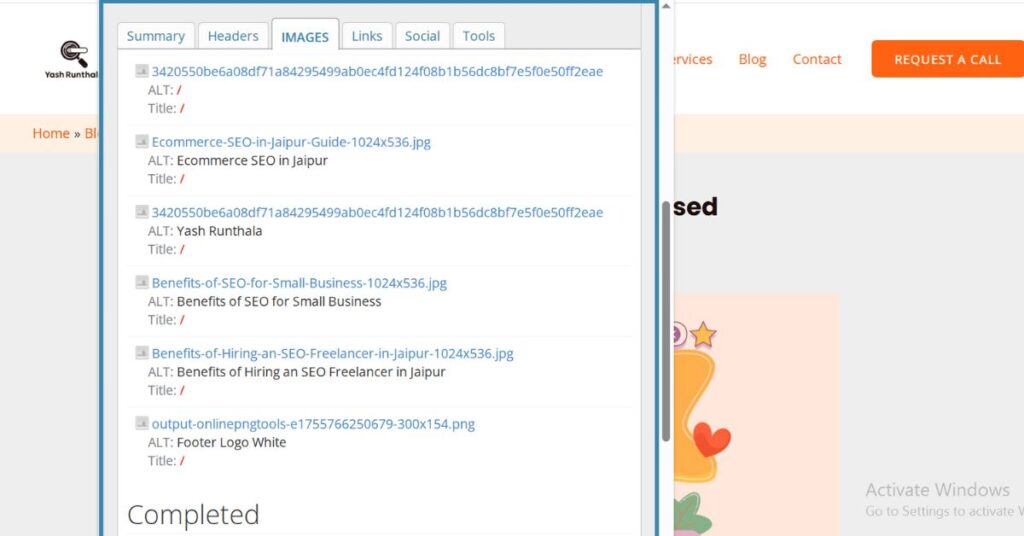
Alt text (alternative text) describes your images to search engines and is also important for accessibility.
Method 1: Inspect Each Image
Right-click on an image and click “Inspect.”
In the HTML code, look for something like:
<img src=”image.jpg” alt=”Short description of the image”>
Check that:
- The alt attribute exists
- It contains a meaningful description of the image
- It uses keywords naturally where relevant (without stuffing)
Method 2: Use SEO META in 1 CLICK
The extension can also show image information, including alt attributes. This can save time when checking multiple images on a page.
How to Check Schema Markup
Schema markup (structured data) helps search engines better understand the content and context of your page. It can also help your pages appear with rich results in SERPs (like FAQs, reviews, etc.).
Method 1: Check via Page Source
View the page source.
Search for application/ld+json (JSON-LD) or other schema formats.
You’ll typically see something like:
<script type=”application/ld+json”>
{
“@context”: “https://schema.org”,
“@type”: “Article”,
…
}
</script>
Method 2: Use a Schema Markup Validator
Use tool like Schema Markup Validator:
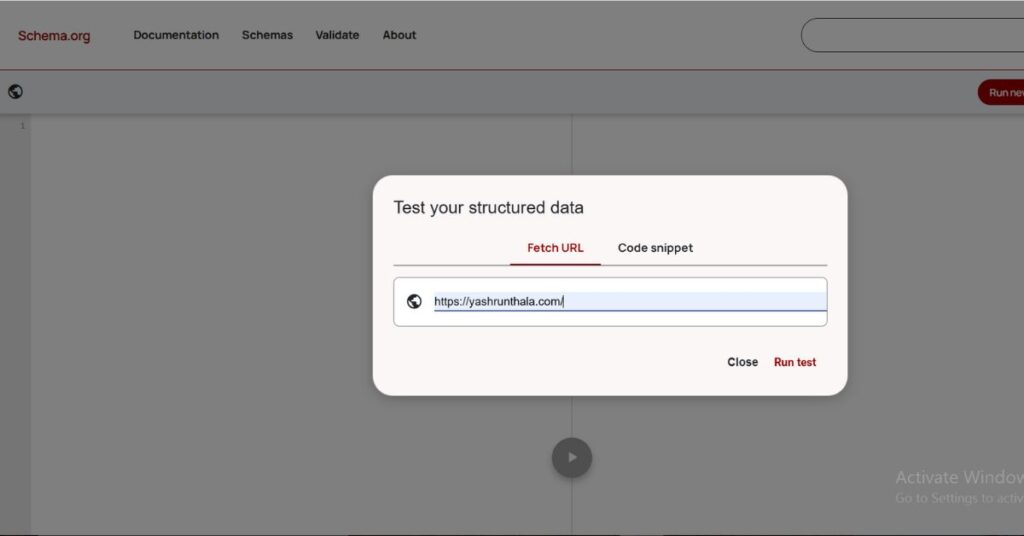
- Step 1: Enter your page URL.
- Step 2: Run the test.
- Step 3: Review which schema types are detected and whether there are any errors.
How to Check Domain Authority
Domain Authority (DA) is a third-party metric (not from Google) that predicts how likely your website is to rank compared to others. It’s useful as a comparative metric.
To check your website’s DA, you can use:
Online Domain Authority Checker tool
Simply enter your domain, and the tool will display your DA score along with other useful metrics.
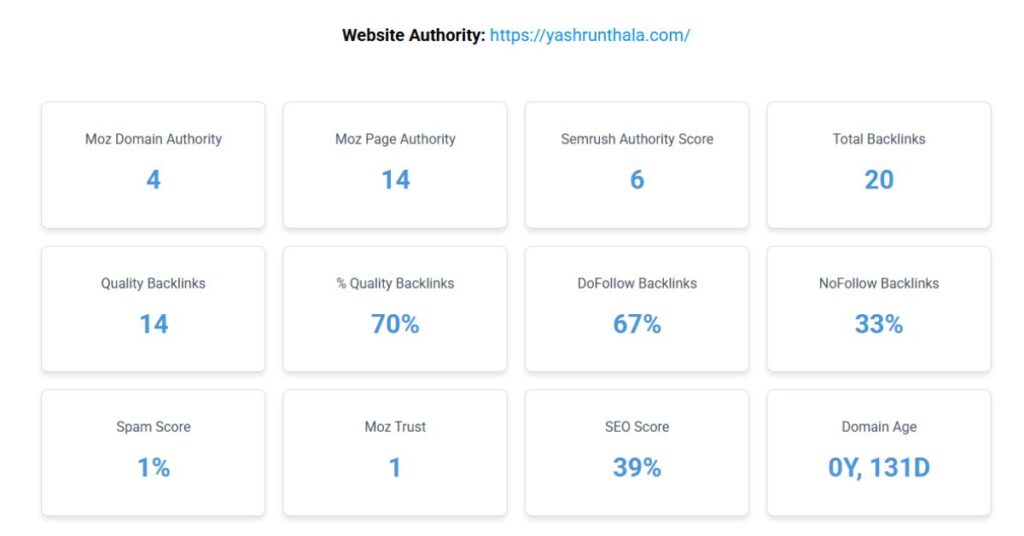
Note: DA is just an estimate. Focus on improving your content, backlinks, and technical SEO instead of obsessing over this number.
How to Check Internal Links on Your Website
Internal links connect pages within your own site. They help:
- Guide users to relevant content
- Help search engines understand your site structure
- Distribute link equity across important pages
How to Check Internal Links
- Manually review your key pages and see whether they have links pointing to other relevant pages.
- Make sure you’ve implemented the internal linking suggestions from your SEO tools (like Rank Math, Yoast, etc.) if you use them.
- Important pages (like money pages, pillar posts, and main category pages) should have multiple internal links pointing to them.
You can also use SEO tools like Screaming Frog, Ahrefs, or SEMrush (if available) to see your internal link structure more clearly—but a basic manual review is a good start.
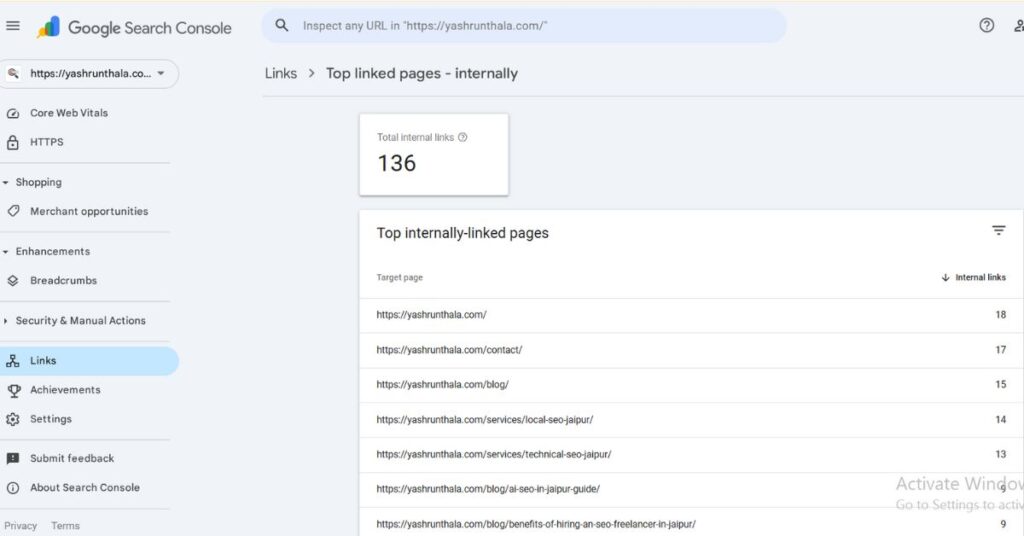
You can find Number of Internal Links of a Page in GSC:
How to Check Backlinks to Your Site
Backlinks (links from other websites to yours) are one of the most important ranking factors. They signal to Google that other websites consider your content valuable.
Method 1: Use SEO Tools (like SEMrush, Ahrefs, etc.)
Tools such as SEMrush, Ahrefs, or similar platforms can show you:
- How many backlinks your site has
- Which domains are linking to you
- The quality and type of links
These are paid tools but often provide free trials or limited free reports.
Method 2: Use Google Search Console
In Google Search Console:
- Go to the “Links” section.
- Under “External links,” you can see Top linked pages & Top linking sites
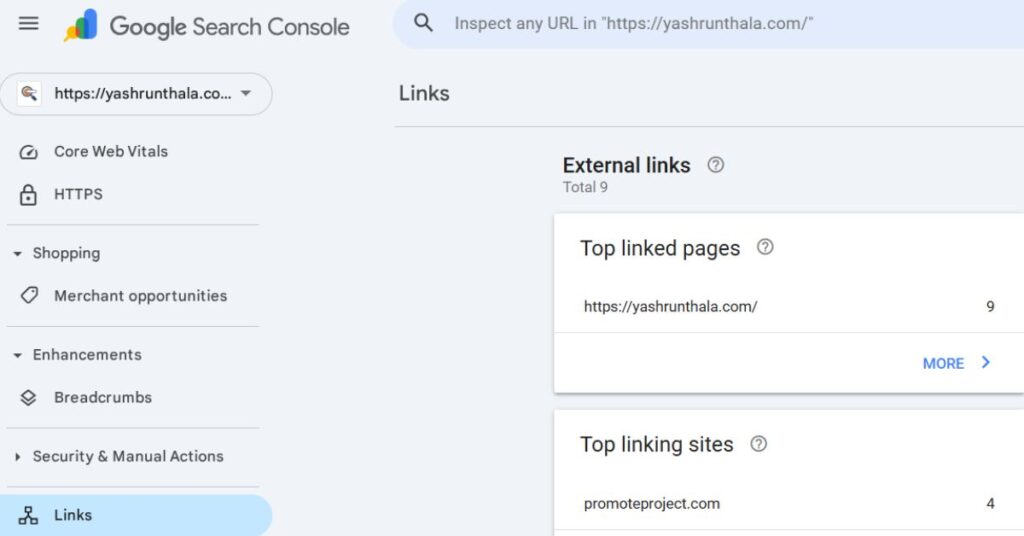
This is a free and reliable way to get a basic overview of your backlinks.
Conclusion: You’ve Completed a Basic SEO Audit!
Congratulations! If you’ve followed the steps above, you’ve completed a solid beginner-friendly SEO audit of your website.
You’ve learned how to:
- Check whether your site is crawlable and indexed
- Review your URLs, title tags, meta descriptions, and headings
- Verify canonical tags and robots meta tags
- Inspect image alt text and schema markup
- Understand domain authority, internal links, and backlinks
Even if you’re not a technical expert, these simple tools and methods help you understand how well your website is optimized for search engines.
Remember:
- SEO is not a one-time task—it’s an ongoing process.
- Regularly auditing your site helps you spot issues early and keep your SEO performance strong.
- Small improvements across multiple pages can lead to big results over time.
Keep learning, keep testing, and keep optimizing. Your future rankings will thank you.

I’m Yash Runthala, a Jaipur local for over 25 years, marketer by profession, traveler by passion, and food blogger by choice. I created this Jaipur Food Guide to help travelers and food lovers discover the real taste of Jaipur through honest restaurant reviews, authentic Rajasthani cuisine, iconic street food, hidden gems, and local stories from the Pink City.

